





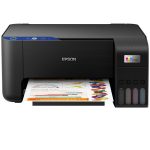

Epson printer L3211
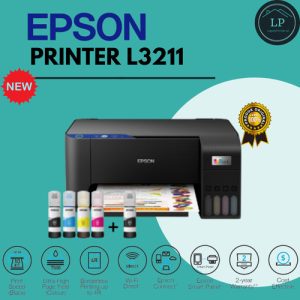
- Ideal for Home use
- 3-in-1 printer: Print, scan, copy
- Up to 3 years of ink in the box – Includes 8,100 pages in black and 6,500 in colour
- Epson Smart Panel app – Wirelessly set up, monitor, print and more from your smart device
- Enjoy 2 years additional warranty when registering
- your printer on the Epson website after purchase
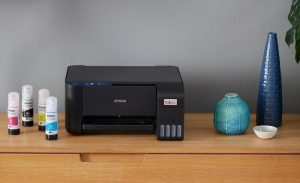
The Epson L3211 is an all-in-one inkjet printer known for its efficient
ink system and versatile functionality. If you need support or assistance
with the Epson L3211, here’s a guide to help you with common issues and tasks:
Common Support Topics for Epson L3211
- Setup and Installation:
Unboxing and Assembly:
- Make sure to remove all protective materials and place the printer on a stable surface.
- Installing Ink Cartridges: Open the ink cartridge cover
- and insert the cartridges into their respective slots. Ensure they click into place.
- Loading Paper: Adjust the paper guides in the tray and load paper,
- making sure it is aligned correctly and not overfilled.
- Connecting to Devices: Connect the printer to your computer
- or mobile device via USB or Wi-Fi. For wireless setup, follow
- the instructions in the printer’s manual or use the Epson iPrint app.
- Driver Installation:
- Windows: Download the latest drivers from the Epson Support website
- and follow the installation instructions.
- Mac: Download the appropriate drivers from the Epson
- website or use macOS’s built-in software update feature.
Troubleshooting Common Issues:
- Printer Not Responding: Ensure the printer is powered on
- and properly connected. Try restarting both the printer and your computer.
- Paper Jams: Open the printer’s cover and carefully remove
- any jammed paper. Check for any small pieces of paper that may be causing blockages.
- Print Quality Issues: Run a print head cleaning cycle
- if prints are blurry or missing colors. Check ink levels and ensure cartridges are properly installed.
Connectivity Problems:
- For Wi-Fi issues, verify that the printer is connected to the correct
- network and that your router is functioning. For USB connections,
- check that the cable is securely connected to both the printer and the computer.




Reviews
There are no reviews yet.